AI Bracelet Virtual Try On
The Ultimate AI Bracelet Virtual Try-On Employ AI-powered solutions to assist your customers with online purchases, ensuring perfect fit and great shopping satisfaction every time. Only One 2D Image Needed.
Create a compelling shopping flow with the hyper-realistic bracelet virtual try-on experiences. Our solution caters to the needs of jewelry brands of all sizes. Opt for 2D images for effortless yet high-quality virtual try-on experiences with minimal effort. This unique feature sets us apart in the world of e-commerce, making it easier than ever for customers to experience your products.
This guide walks you through:
- Endpoint:
/s2s/v2.0/task/2d-vto/bracelet - Authentication: All requests require an
Authorization: Bearer YOUR_API_KEY - Workflow:
- Prepare a wrist image: Uploading an image or provide a valid image URL of your wrist
- Prepare a bracelet image: Uploading an image or provide a valid image URL of a bracelet product
- Fire an AI task and Retrieve Task ID: Capture the
task_idfrom the response. - Poll Status (
GET): Use thetask_idto check the status of the task. Continue polling untiltask_statusis"success"or"error".
- API Playground
Interactively explore and test the API using our official playground:
- Authentication
- Include your API key in the request header using Bearer Token:
Authorization: Bearer YOUR_API_KEY
You can find your API Key at https://yce.makeupar.com/api-console/en/api-keys/.
- Upload an Image
You may upload a file directly to the server or provide a valid image URL in the VTO task payload.
- Upload Endpoint
POST /s2s/v2.0/fileAlternatively, skip this step if you already have a public image URL.
You may upload a file directly to the URL provided in the response from the File API and then use the corresponding src_file_id returned by the File API to invoke the AI task later. Or provide a valid image URL in the VTO task payload as src_file_url. The src_file_id or src_file_url will serve as the virtual try-on target.
You must also provide another bracelet product image as a reference using ref_file_ids or ref_file_urls to be applied to your src_file_id or src_file_url.
The AI engine supports automatic background removal for your bracelet product image. However, you may provide an occlusion mask image file for either your hand (srcmsk_file_id or srcmsk_file_url) or the bracelet product (refmsk_file_ids or refmsk_file_urls) to fine-tune the segmentation.
- Create a Bracelet VTO Task and Poll for Results
Once you have an image and a template ID, create a task. The API processes the request asynchronously. You must poll the task status until it reaches success or error.
- Create Task Endpoint
POST /s2s/v2.0/task/2d-vto/bracelet- Polling Endpoint
GET /s2s/v2.0/task/2d-vto/bracelet/{task_id}- AI Bracelet Virtual Try-On Specification
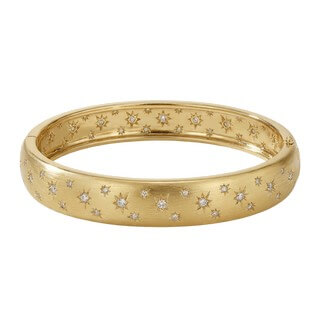
Supported Bracelet View A bracelet image must be provided in a three-quarter front view (approximately 45 degrees).
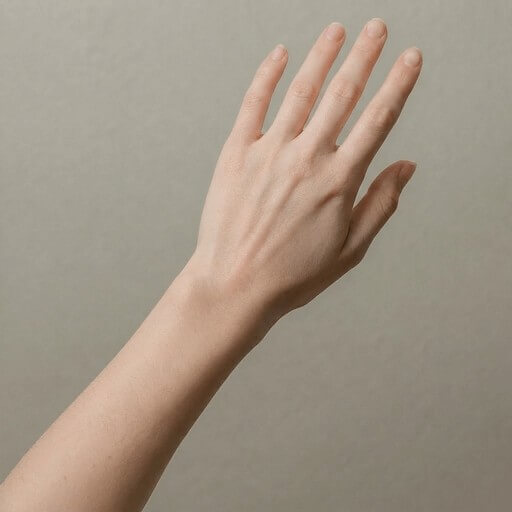
Supported Wrist View The back of the wrist should be fully visible with all five fingers clearly shown and without any occlusion.
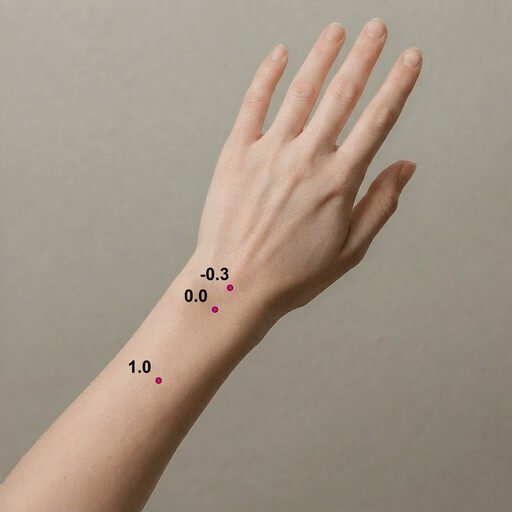
bracelet_wearing_location: float (−0.3 to 1.0) Indicates the position along the wrist: −0.3 represents near the main wrist joint 1.0 represents far from the main wrist joint Default value: null (use engine default)
bracelet_shadow_intensity: float (0.0 to 1.0) Controls the strength of the shadow: 0.0 represents no shadow 1.0 represents maximum shadow Default value: 0.15
bracelet_ambient_light_intensity: float (0.0 to 1.0) Defines the extent to which lighting references the target hand image: 0.0 ignores the hand image lighting 1.0 fully matches the hand image lighting and shadow rendering Default value: 1.0
Bracelet Anchor Points: array of 2 points in pixel coordinate (optional) Marks the inner edge of the bracelet where it contacts the wrist, specifying the left and right points. If this parameter is not provided, the AI engine will automatically detect the anchor points. 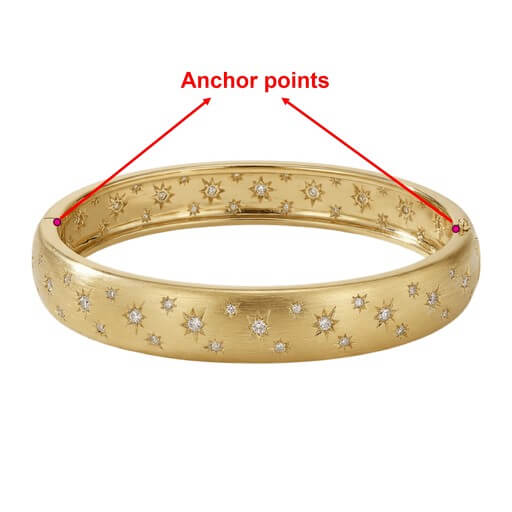
- Supported Formats & Dimensions
| AI Feature | Supported Dimensions | Supported File Size | Supported Formats |
|---|---|---|---|
| AI Bracelet Virtual Try-On | long side <= 4096 | < 10MB | jpg/jpeg/png |
- Error Codes
| Error Code | Description |
|---|---|
| RUNTIME_ERROR | An unexpected error occurred dubracelet runtime |
| PHOTO_DETECTION_FAIL | The user photo could not be processed correctly, for example no hand detected |
| OBJECT_DETECTION_FAIL | The object photo could not be processed correctly, for example no product detected |
| PHOTO_CHECK_INVALID | The pose or size of the user photo is invalid |
| INPUT_ERROR | The input file format is incorrect |
| INPUT_MAIN_IMAGE_EMPTY | A user image is required |
- Environment & Dependency
| Sample Code Language / Tool | Recommended Runtime Versions |
|---|---|
| cURL | - bash >= 3.2 - curl >= 7.58 (modern TLS/HTTP support) - jq >= 1.6 (robust JSON parsing) |
| Node.js (JavaScript) | Node >= 18 (for global fetch) |
| JavaScript | - Chrome / Edge >= 80 - Firefox >= 74 - Safari >= 13.1 |
| PHP | PHP >= 7.4 (for modern TLS/compat), ext-curl (recommended) or allow_url_fopen=On + ext-openssl, ext-json |
| Python | Python >= 3.10 (for f-strings), requests >= 2.20.0 |
| Java | Java 11+ (for HttpClient), Jackson Databind >= 2.12.0 |
version: v2.5The JavaScript Camera Kit provides a complete in-browser camera solution designed for high-accuracy face-based imaging tasks. It handles camera permissions, real-time face detection, automatic quality validation (lighting, pose, angle, distance), and guided capture UI flows.
This module is optimized for AI-driven image analysis, such as:
- AI Skin Analysis (SD/HD)
- AI Face Tone Analysis
- Hair-related Analysis
- Virtual Try-On (Ring, Wrist, Necklace, etc.)
- Permission Handling: Automatic management of webcam access.
- Quality Validation: Real-time monitoring of face position, lighting, and angle.
- Multi-Step Flows: Support for complex capture requirements (e.g., multi-angle hair capture).
- Flexible Output: Supports both
base64andblobimage formats.
Include the SDK via CDN in your HTML <head> or before the closing <body> tag. Once loaded, the SDK installs a global YMK object.
<script src="https://plugins-media.makeupar.com/v2.5-camera-kit/sdk.js"></script>The following example demonstrates how to initialize the kit, open the camera, and handle captured images.
<!DOCTYPE html>
<html lang="en">
  <head>
    <meta charset="UTF-8" />
    <meta name="viewport" content="width=device-width, initial-scale=1.0" />
    <title>Camera Kit Sample</title>
    <style>
      #YMK-module { margin: 20px 0; }
      img { width: 150px; margin: 5px; border: 1px solid #ccc; }
    </style>
  </head>
  <body>

    <!-- Initialization Script -->
    <script>
      // Define async init entry point
      window.YMKAsyncInit = function() {
        YMK.addEventListener('loaded', function() {
          console.log('Module fully loaded and ready');
        });

        YMK.addEventListener('faceDetectionCaptured', function(capturedResult) {
          const container = document.getElementById('captured-results');
          container.innerHTML = '';

          // Handle multiple images if returned (e.g., multi-angle capture)
          for (const item of capturedResult.images) {
            const img = document.createElement('img');
            // Handle both base64 strings and Blob objects
            img.src = typeof item.image === 'string'
              ? item.image
              : URL.createObjectURL(item.image);
            container.appendChild(img);
          }
        });
      };

      function openCameraKit() {
        YMK.init({
          faceDetectionMode: 'makeup',
          imageFormat: 'base64',
          language: 'enu'
        });
        YMK.openCameraKit();
      }
    </script>

    <!-- Load SDK -->
    <script src="https://plugins-media.makeupar.com/v2.5-camera-kit/sdk.js"></script>

    <!-- UI Elements -->
    <button onclick="openCameraKit()">Open Camera Kit</button>

    <!-- Mandatory Mount Point -->
    <div id="YMK-module"></div>

    <h3>Captured Results:</h3>
    <div id="captured-results"></div>
  </body>
</html>To ensure successful integration, the following requirements must be met:
| Requirement | Description |
|---|---|
| Browser Support | Must support getUserMedia API. |
| HTTPS | Required on most browsers for webcam access (except localhost). |
| Mount Point | A <div id="YMK-module"></div> is mandatory for rendering the UI. |
| Async Init | You must define window.YMKAsyncInit before the SDK loads. |
Call YMK.init() before calling YMK.openCameraKit().
YMK.init({
  faceDetectionMode: 'makeup', // Detection flow
  imageFormat: 'base64',       // Output format
  language: 'enu'              // UI Language
});Register listeners for camera events and capture results.
YMK.addEventListener('faceQualityChanged', function(q) {
  console.log('Quality updated:', q);
});This displays the UI, opens the webcam, and begins real-time monitoring.
YMK.openCameraKit();Images arrive via the faceDetectionCaptured event.
YMK.addEventListener('faceDetectionCaptured', function(result) {
  console.log(result.images);
});Clean up resources when done.
YMK.close();Configures module appearance, detection mode, language, and capture format.
| Argument | Type | Description | Default |
|---|---|---|---|
faceDetectionMode | string | Detection flow to use (see Detection Modes below). | "skincare" |
width | number | Pixel width of module container (300–1920). | 360 (≥500px) or screen width |
height | number | Pixel height of module container (300–1920). | 480 (≥500px) or min(screen.height, innerHeight) |
language | string | UI Language code (chs, cht, deu, enu, esp, fra, jpn, kor, ptb, ita, mon ). | "enu" |
imageFormat | string | Format returned via faceDetectionCaptured. | "base64" |
disableCameraResolutionCheck | boolean | Allow running even if webcam does not meet required resolution. | false |
hideFlipCameraButton | boolean | Controls visibility of the flip front/back camera button if the device supports it. | false |
countingDuration | number | Controls the countdown milliseconds when camera quality check meets criteria before auto-capture. | 800 |
qualityLevel | string | Controls the camera quality check setting, with options of relaxed, moderate, or strict. | relaxed |
qualityOverrides | object | Configure detailed parameters for camera quality verification. | See Camera Kit Quality Configuration |
videoQuality | string | Configure the output quality to 720p, 1080p, or 1920p. 720p corresponds to 1280 × 720, 1080p to 1920 × 1080, and 1920p to 2560 × 1920. This setting is supported only for skincare and hdskincare | 720p |
| Method | Description |
|---|---|
YMK.openCameraKit() | Opens the module and begins detection. |
YMK.close() | Closes module and camera. |
YMK.addEventListener(event, callback) | Registers event callbacks. Returns an EventListenerIdentifier. |
YMK.removeEventListener(id) | Removes listener by identifier. |
YMK.isLoaded() | Returns whether livestream or photo is drawn on canvas (boolean). |
YMK.pause() | Pauses the webcam stream. |
YMK.resume(restartWebcam) | Resumes webcam after pause. |
YMK.getInfo() | Returns current module info (e.g., { fps: 30 }). |
Camera Kit provides configurable quality parameters to control face detection and skin analysis behavior. These parameters allow developers to fine-tune detection strictness while maintaining consistency across web and native SDK implementations.
To simplify configuration, Camera Kit includes three predefined presets:
- RELAXED: Optimized for usability with minimal restrictions
- MODERATE: Balanced between usability and accuracy
- STRICT: Optimized for maximum detection accuracy
All custom configurations must meet or exceed the minimum requirements defined by the RELAXED preset.
Camera Kit Quality Configuration supports both skincare and hdskincare.
| Preset | Description |
|---|---|
| RELAXED | Less strict validation for smoother user experience |
| MODERATE | Balanced validation for most use cases |
| STRICT | Tight validation for high accuracy scenarios |
When using qualityOverrides, you may specify only the parameters you want to change. Unspecified parameters fall back to the active preset defaults.
{
  "face_ratio_lower_threshold": 0.55,
  "face_ratio_upper_threshold": 1,
  "face_left_boundary_lower_threshold": 0,
  "face_left_boundary_upper_threshold": 1,
  "face_right_boundary_lower_threshold": 0,
  "face_right_boundary_upper_threshold": 1,
  "face_top_boundary_lower_threshold": 0,
  "face_top_boundary_upper_threshold": 1,
  "face_bottom_boundary_lower_threshold": 0,
  "face_bottom_boundary_upper_threshold": 1,
  "pitch_lower_threshold": -20,
  "pitch_upper_threshold": 10,
  "yaw_lower_threshold": -15,
  "yaw_upper_threshold": 15,
  "roll_lower_threshold": -15,
  "roll_upper_threshold": 15,
  "lighting_lower_threshold": 0.55,
  "lighting_upper_threshold": 0.8,
  "lighting_uneven_threshold": 0.2
}Controls the acceptable proportion of the detected face.
- Measurement basis:
- Landscape mode: vertical ratio
- Portrait mode: horizontal ratio
| Parameter | Description | Allowed Range | Preset Defaults |
|---|---|---|---|
face_ratio_lower_threshold | Minimum face ratio | 0.55 to 1.0 | STRICT 0.75, MODERATE 0.65, RELAXED 0.55 |
face_ratio_upper_threshold | Maximum face ratio | 1.0 | 1.0 (all presets) |
Defines how close the face can be to the frame edges.
| Parameter | Description | Allowed Range | Default |
|---|---|---|---|
face_left_boundary_lower_threshold | Left boundary minimum | 0.0 to 1.0 | 0.0 |
face_left_boundary_upper_threshold | Left boundary maximum | 0.0 to 1.0 | 1.0 |
face_right_boundary_lower_threshold | Right boundary minimum | 0.0 to 1.0 | 0.0 |
face_right_boundary_upper_threshold | Right boundary maximum | 0.0 to 1.0 | 1.0 |
face_top_boundary_lower_threshold | Top boundary minimum | 0.0 to 1.0 | 0.0 |
face_top_boundary_upper_threshold | Top boundary maximum | 0.0 to 1.0 | 1.0 |
face_bottom_boundary_lower_threshold | Bottom boundary minimum | 0.0 to 1.0 | 0.0 |
face_bottom_boundary_upper_threshold | Bottom boundary maximum | 0.0 to 1.0 | 1.0 |
Controls allowable head orientation.
| Parameter | Description | Allowed Range | Preset Defaults |
|---|---|---|---|
pitch_lower_threshold | Minimum pitch angle | -20 to 10 | STRICT -10, MODERATE -15, RELAXED -20 |
pitch_upper_threshold | Maximum pitch angle | -20 to 10 | STRICT 0, MODERATE 5, RELAXED 10 |
yaw_lower_threshold | Minimum yaw angle | -15 to 15 | STRICT -5, MODERATE -10, RELAXED -15 |
yaw_upper_threshold | Maximum yaw angle | -15 to 15 | STRICT 5, MODERATE 10, RELAXED 15 |
roll_lower_threshold | Minimum roll angle | -15 to 15 | STRICT -5, MODERATE -10, RELAXED -15 |
roll_upper_threshold | Maximum roll angle | -15 to 15 | STRICT 5, MODERATE 10, RELAXED 15 |
Defines acceptable lighting quality and uniformity.
| Parameter | Description | Allowed Range | Preset Defaults |
|---|---|---|---|
lighting_lower_threshold | Minimum lighting level | 0.55 to 1.0 | STRICT 0.8, MODERATE 0.7, RELAXED 0.55 |
lighting_upper_threshold | Maximum lighting level | 0.8 to 1.0 | STRICT 0.9, MODERATE 0.85, RELAXED 0.8 |
lighting_uneven_threshold | Maximum luma difference between eyes | 0.0 to 0.2 | STRICT 0.1, MODERATE 0.15, RELAXED 0.2 |
- Custom values must not be less restrictive than RELAXED preset values.
- Only specified fields in
qualityOverridesare applied. - All unspecified parameters default to the selected preset.
Configure the faceDetectionMode in YMK.init() to suit your specific use case.
| Mode | Description |
|---|---|
makeup | Standard camera mode for virtual cosmetic try-on. |
skincare | Standard skin analysis mode, close-up face capture. Support AI Skin Analysis and AI Skin Simulation. |
hdskincare | High-definition capture for AI skin analysis using webcams with a minimum resolution of 2560 pixels on the longer side, subject to device support. |
shadefinder | Skin Tone Analysis front-face capture. |
facereshape | AI Face Reshape capture and AI Face Lift. |
hairlength | Full hair-length capture (from a distance). |
hairfrizziness | 3-phase capture: front, right-turn, left-turn. |
hairtype | Same 3-phase multi-angle capture flow. |
hairdensity | A 45‑degree downward head‑angle photograph. |
ring | Hand capture for ring virtual try‑on. |
wrist | Wrist capture for watch or bracelet virtual try‑on. |
necklace | Selfie capture for necklace try-on. |
earring | Selfie capture for earring virtual try-on. |
teethwhiten | Front‑facing selfie that detects whether teeth are visible; photo taken only when detected. |
nail | Hand capture for nails virtual try‑on. |
comprehensive | Photo to be used simultaneously for AI Makeup, AI Skin Analysis, and AI Facial Attributes & Ratio Analysis. |
| Event | Description |
|---|---|
opened | Module opened. |
loading | Loading progress (0–100). |
loaded | Camera stream loaded onto canvas. |
closed | Module closed. |
faceDetectionStarted | User enters the detection UI. |
| Event | Description |
|---|---|
cameraOpened | Webcam opened successfully. |
cameraClosed | Webcam closed. |
cameraFailed | Permission denied or no webcam found. Error codes include "error_resolution_unsupported", "error_permission_denied", "error_access_failed". |
unsupportedResolution | Fired when the device resolution does not meet the minimum requirements for the selected mode. |
Fires continuously during detection as quality metrics update.
Example Payload:
{
  "hasFace": true,
  "position": "good",
  "frontal": "good",
  "lighting": "ok"
}
Field Definitions:
hasFace: (boolean) Whether a face is detected.position: (string) Face distance/size quality ("good","notgood","toosmall","outofboundary").frontal: (string) Whether user is facing forward ("good","notgood").lighting: (string) Lighting strength ("good","ok","notgood").
Fired after all required face quality validation checks have passed and the Camera Kit has successfully completed the capture workflow. Depending on the mode, this may contain one or multiple images.
Example Payload:
{
  "mode": "makeup",
  "images": [
    {
      "phase": 0,
      "image": "data:image/jpeg;base64,...",
      "width": 500,
      "height": 500
    }
  ]
}
Image Object Fields:
phase: (integer) Zero-based index representing the capture step.image: (string|Blob) The captured image data.width: (integer) Pixel width of the captured image.height: (integer) Pixel height of the captured image.
To ensure successful capture:
- Distance: Ensure correct face distance (not too zoomed in/out).
- Angle: Ensure frontal face angle.
- Lighting: Provide sufficient lighting (avoid shadows or dark environments).
Modes like hairtype or hairfrizziness require multiple steps:
- Front face
- Turn right
- Turn left
Ensure your event handling logic accounts for multiple images in the faceDetectionCaptured result array.
- Flip Button: Use
hideFlipCameraButton: trueto enforce a specific camera orientation if your UX requires it. - Capture Delay: Adjust
countingDuration(default800) to give users more time to review the capture before auto-submission occurs.
const minQuality = {
  hasFace: true,
  area: "good",
  frontal: "good",
  lighting: "ok"
};