AI Hat Virtual Try-On
Step into the future of fashion with our Hyper-Realistic AR Try-On for Headwear, powered by cutting-edge AI technology. This innovative solution transforms online shopping into an immersive experience, allowing customers to virtually try on headwear with unmatched precision and realism. From instant style discovery to true-to-life visualization, our AR technology ensures every hat and headband looks and feels authentic. Helping shoppers find their perfect fit and style before they buy. Elevate engagement, boost confidence, and redefine the way customers interact with your products.
This guide walks you through:
- Endpoint:
/s2s/v2.0/task/hat - Authentication: All requests require an
Authorization: Bearer YOUR_API_KEY - Workflow:
- Prepare a selfie image: Uploading an image or providing a valid image URL of yourself as the virtual try-on target.
- Prepare a hat image: Upload a hat product image or a photo of a person wearing hat.
- Select a style and a gender: Select a preferred style and the gender you wish to visualize.
- Fire an AI task and Retrieve Task ID: Capture the
task_idfrom the response. - Poll Status (
GET): Use thetask_idto check the status of the task. Continue polling untiltask_statusis"success"or"error".
- Authentication
- Include your API key in the request header using Bearer Token:
Authorization: Bearer YOUR_API_KEYYou can find your API Key at https://yce.makeupar.com/api-console/en/api-keys/.
- AI Hat API Usage Guide
This guide explains how to upload images, prepare reference hat, and create virtual try-on tasks using the AI Hat API.
- Step 1. Prepare a Selfie Image
You can:
Upload a selfie image using the File API (
/s2s/v2.0/file), orProvide a valid image URL.
- Step 1.1 Upload a File Using the File API
Use the File API (/s2s/v2.0/file) to upload a target user image.
Image Requirements:
- Upload a selfie photo.
- Ensure the photo clearly shows the upper body.
- Avoid backgrounds with multiple people or distracting objects.
Example Request:
curl --request POST \
  --url https://yce-api-01.makeupar.com/s2s/v2.0/file \
  --header 'Authorization: Bearer YOUR_API_KEY' \
  --header 'content-type: application/json' \
  --data '{
    "files": [
      {
        "content_type": "image/jpg",
        "file_name": "selfie_photo_01_3dbd1b6683.jpg",
        "file_size": 547541
      }
    ]
}'- Step 1.2. Retrieve File API Response
The response includes:
file_idfor creating an AI task.requests.urlfor uploading the actual image file.
Sample Response:
{
  "status": 200,
  "data": {
    "files": [
      {
        "content_type": "image/jpg",
        "file_name": "selfie_photo_01_3dbd1b6683.jpg",
        "file_id": "SaGaqpDgKwFrVBgMpQMA3HY0LeqdT9/13W5TOD8/u/FfjK3xgCQ+hRt9MJXBFaud",
        "requests": [
          {
            "method": "PUT",
            "url": "https://yce-us.s3-accelerate.amazonaws.com/demo/ttl30/...signature...",
            "headers": {
              "Content-Length": "547541",
              "Content-Type": "image/jpg"
            }
          }
        ]
      }
    ]
  }
}- Step 1.3. Upload Image to Provided URL
Use the requests.url from the File API response to upload the image:
curl --location --request PUT 'https://yce-us.s3-accelerate.amazonaws.com/demo/ttl30/...signature...' \
  --header 'Content-Type: image/jpg' \
  --header 'Content-Length: 547541' \
--data-binary @'./selfie_photo_01_3dbd1b6683.jpg'- Step 2. Prepare a Reference Hat Image
You can:
- Upload a hat image using the File API (
/s2s/v2.0/file), or - Provide a valid image URL.
Supported Hat Images:
- A hat product image.
- A photo of a person wearing hat.
Refer to File Specs and Errors for detailed specifications.
- Step 3. Create an AI Task
Select a preferred style and the gender you wish to visualize. Use the AI Task API (/s2s/v2.0/task/hat) to create a virtual try-on task.
Parameters:
- For the user image:
src_file_idorsrc_file_url. - For the hat image:
ref_file_id, orref_file_url.
Example Request:
curl --request POST \
  --url https://yce-api-01.makeupar.com/s2s/v2.0/task/hat \
  --header 'Authorization: Bearer YOUR_API_KEY' \
  --header 'content-type: application/json' \
  --data '{
    "src_file_url": "https://example.com/selfie.jpg",
    "ref_file_url": "https://example.com/accessory.jpg",
    "gender": "female",
    "style": "random"
}'
Sample Response:
{
  "status": 200,
  "data": {
    "task_id": "SaGaqpDgKwFrVBgMpQMA3HY0LeqdT9_13W5TOD8_u_GPi6NqQ3dhlmN-6ntFwhzT"
  }
}- Step 4. Poll for Task Result
Use the task ID to check the status:
curl --request GET \
  --url https://yce-api-01.makeupar.com/s2s/v2.0/task/hat/SaGaqpDgKwFrVBgMpQMA3HY0LeqdT9_13W5TOD8_u_GPi6NqQ3dhlmN-6ntFwhzT \
  --header 'Authorization: Bearer YOUR_API_KEY' \
--header 'content-type: application/json'- Step 5. Retrieve Result
A successful response includes a download URL for the result image:
{
  "status": 200,
  "data": {
    "error": null,
    "results": {
      "url": "https://yce-us.s3-accelerate.amazonaws.com/demo/ttl30/...signature..."
    },
    "task_status": "success"
  }
}
Invalid API Key error response:
{
  "status": 401,
  "error": "Unauthorized",
  "error_code": "InvalidAccessToken"
}AI Hat Virtual Try-On Specification
- Image Requirements
| Type | Minimum Resolution | Notes |
|---|---|---|
| Selfie | 512 × 512 | Face visible, head-to-chest preferred |
| Hat | 512 × 512 (product) 800 × 800 (worn) | Clear, unobstructed hat view |
Supported Hat Image
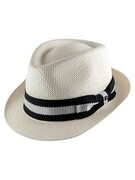
- Product Image Requirements
- Minimum resolution: 512 × 512 pixels
- Only one product per image
- The product should cover more than 25% of the image height
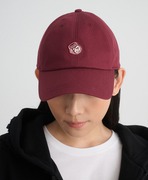
- Worn Image Requirements
- Minimum resolution: 800 × 800 pixels
- Single Item Requirement: The model must wear exactly one item. Multiple items or accessories are not permitted.
- Coverage Ratio: The worn item must occupy more than 20% of the total image height. This ensures the item is clearly visible and prominent within the frame.
Supported Selfie View
- Recommended image resolution: at least 512 × 512 pixels.
- Recommended face coverage: more than 15% of the image height.
- Single Subject Requirement: The image must contain exactly one human subject. No additional people or partial figures are allowed.
- Face Visibility: The subject's face must be fully visible without obstruction. Hair, accessories, or objects should not cover key facial features.
- Framing: The image must include at least a head shot, covering the area from the top of the head to the chest. A half-body shot (head to waist) is preferred for optimal analysis.

Try-on Styles
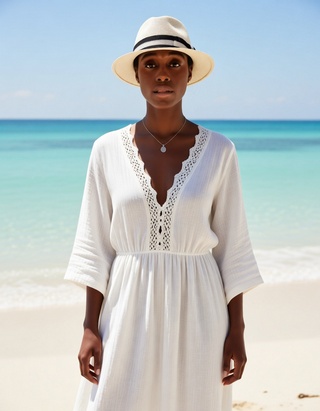
- There are five predefined styles for generating the virtual try-on output: "style_sporty_casual" "style_urban_fashion" "style_vacation_casual" "style_warm_cozy" and "style_bohemian". You can specify this style parameter when creating an AI task or allow the system to select a style at random by default.
- Supported Formats & Dimensions
| AI Feature | Supported Dimensions | Supported File Size | Supported Formats |
|---|---|---|---|
| AI Hat Virtual Try-On | Input: long side <= 4096 Output: 896 x 1152 | < 10MB | jpg/jpeg/png/heic |
- Error Codes
| Error Code | Description |
|---|---|
| error_download_image | Failed to download source or reference image |
| error_inference | Inference pipeline error |
| error_no_face | No face detected in source image |
| error_nsfw_content_detected | NSFW content detected in result |
| exceed_max_filesize | File size exceeds 10 MB |
| invalid_parameter | Invalid gender or style value |
| unknown_internal_error | Other internal errors |
- Environment & Dependency
| Sample Code Language / Tool | Recommended Runtime Versions |
|---|---|
| cURL | - bash >= 3.2 - curl >= 7.58 (modern TLS/HTTP support) - jquery >= 1.6 (robust JSON parsing) |
| Node.js (JavaScript) | Node >= 18 (for global fetch) |
| JavaScript | - Chrome / Edge >= 80 - Firefox >= 74 - Safari >= 13.1 |
| PHP | PHP >= 7.4 (for modern TLS/compat), ext-curl (recommended) or allow_url_fopen=On + ext-openssl, ext-json |
| Python | Python >= 3.10 (for f-strings), requests >= 2.20.0 |
| Java | Java 11+ (for HttpClient), Jackson Databind >= 2.12.0 |