AI Hair Type Detection
Imagine having an AI hair expert in your pocket. Our tech dives into your hair's texture, thickness, and curl pattern, picking from ten unique curl shapes and sorting them into nine clear types, from Straight to Super Kinky. You get a full hair profile, and brands can use those insights to deliver spot-on product recommendations and tips just for you.
How to Take Photos for AI Hair Type Detection
Take 3 Photos from left, front facing to right.
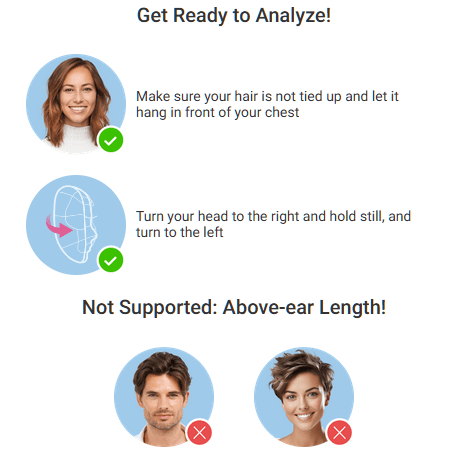
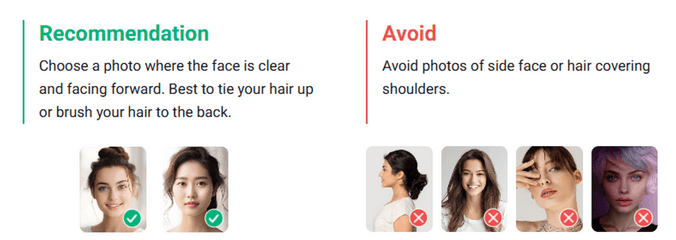
- Just snap three quick selfies. One facing straight ahead, one turning about 45 degrees to the left, and one turning 45 degrees to the right. We're trying to catch the full look of your hair from all sides. Make sure your whole face and the upper boundary of your hair are clearly visible in each photo. Your face should take up around 50% to 80% of the image width. Not too small, not too close. That way, it's sharp enough for analysis. When you turn for the side shots, rotate your head left and right like you're saying 'no' (that's called yaw rotation). Keep your head level with no tilting up, down, or sideways. Skip any back or top-down angles because those wont work for us.
- You can utilize the JS Camera Kit to snap photos. Make sure your hair is not tied up and let it hang in front of your chest. Turn your head to the right and hold still, and turn to the left to get 3 images to be analyzed.
How to Detect Hair Type by AI
Using the /s2s/v2.0/file API, please upload the following assets:
- Photos from the front, the right side, and the left side.
Execute AI task /s2s/v2.0/task/hair-type-detection
Run the hair-type detection task by sending in three images: one from the front, one from the right side, and one from the left side. Use their file IDs as the source inputs for the AI.Polling to check the status of a task until it succeed or error
This task_id is used to monitor the task's status through polling GET 'task/hair-type-detection' to retrieve the current engine status. Until the engine completes the task, the status will remain 'running', and no units will be consumed during this stage.
| Category | Thumbnail | Hair Type Classification | Description |
|---|---|---|---|
| 1 |  | Straight | This hair type is characterized by strands that lack natural curls and typically fall straight from the root to the tip |
| 2A |  | Slight Wavy | This hair type features subtle, delicate waves with a smooth and tousled texture, but lacks volume at the roots |
| 2B |  | Medium Wavy | This hair type that showcases natural S-shaped waves that typically begin in the middle of the hair shaft and delicately hug the head, creating a subtle and sophisticated dimension |
| 2C |  | Thick Wavy | The waves in this hair type are characterized by a coarse texture and are shaped like the letter "S", starting at the root and continuing down the length of the hair. This hair type is prone to frizz |
| 3A |  | Loose Curls | These curls are big, relaxed, and bouncy, and have a noticeable sheen from roots to ends |
| 3B |  | Medium Curls | This hair type consists of coarse, springy ringlets that are prone to frizz |
| 3C |  | Tight Curls | These curls boast a dense and compact corkscrew shape, lending them plenty of volume |
| 4A |  | Kinky Soft | This hair type is characterized by tightly packed, springy S-shaped coils |
| 4B |  | Coily | Densely packed coils tightly wound into sharp, zigzag angles |
| 4C |  | Extremely Coily | This hair type is characterized by tight, fluffy coils that are more susceptible to breakage |
Result Arguments
mapping: result is a string showing the detected hair type category. Here lists all the possible result strings in an array:
["1 to 2a", "2a to 2b", "2b to 2c", "2c to 3a", "3a to 3b", "3b to 3c", "3c to 4a", "4a to 4b", "4b to 4c"]term: a one-to-one mapping string between hair type categories and their classifications. Here lists all the possible result strings in an array:
["Straight to Slight Wavy", "Slight to Medium Wavy", "Medium to Thick Wavy", "Thick Wavy to Loose Curls", "Loose to Medium Curls", "Medium to Tight Curls", "Tight Curls to Kinky Soft", "Kinky Soft to Coily", "Coily to Extremely Coily"]Suggestions for How to Shoot
- Supported Formats & Dimensions
| Type | Supported Dimensions | Supported File Size | Supported Formats |
|---|---|---|---|
| AI Hair Type Detection | The image must be at least 320 pixels wide and tall, and no more than 4096 pixels in either dimension. If one side of your image is longer than 1080 pixels, it will be resized automatically to fit within that limit for analysis. | < 10MB | jpg/png |
- Error Codes
| Error Code | Description |
|---|---|
| error_mismatch_image_size | Make sure all your face photos (front, left, and right) are the same size |
| error_below_min_image_size | If your image is smaller than 320 pixels in width or height, it's too small to use |
| error_face_position_invalid | Your face needs to be fully visible in the image, without any parts cut off |
| error_face_position_too_small | The face in your photo is too small to analyze properly |
| error_face_position_out_of_boundary | Your face is either too large or partially outside the edges of the photo |
| error_insufficient_lighting | The lighting is too dim, which makes analysis difficult |
| error_face_angle_invalid | Your face angle isn't quite right. For front-facing shots, keep your head within 10 degrees of straight. For side-facing shots, the angle should be more than 15 degrees |
- Environment & Dependency
| Sample Code Language / Tool | Recommended Runtime Versions |
|---|---|
| cURL | - bash >= 3.2 - curl >= 7.58 (modern TLS/HTTP support) - jq >= 1.6 (robust JSON parsing) |
| Node.js (JavaScript) | Node >= 18 (for global fetch) |
| JavaScript | - Chrome / Edge >= 80 - Firefox >= 74 - Safari >= 13.1 |
| PHP | PHP >= 7.4 (for modern TLS/compat), ext-curl (recommended) or allow_url_fopen=On + ext-openssl, ext-json |
| Python | Python >= 3.10 (for f-strings), requests >= 2.20.0 |
| Java | Java 11+ (for HttpClient), Jackson Databind >= 2.12.0 |
version: v2.5The JavaScript Camera Kit provides a complete in-browser camera solution designed for high-accuracy face-based imaging tasks. It handles camera permissions, real-time face detection, automatic quality validation (lighting, pose, angle, distance), and guided capture UI flows.
This module is optimized for AI-driven image analysis, such as:
- AI Skin Analysis (SD/HD)
- AI Face Tone Analysis
- Hair-related Analysis
- Virtual Try-On (Ring, Wrist, Necklace, etc.)
- Permission Handling: Automatic management of webcam access.
- Quality Validation: Real-time monitoring of face position, lighting, and angle.
- Multi-Step Flows: Support for complex capture requirements (e.g., multi-angle hair capture).
- Flexible Output: Supports both
base64andblobimage formats.
Include the SDK via CDN in your HTML <head> or before the closing <body> tag. Once loaded, the SDK installs a global YMK object.
<script src="https://plugins-media.makeupar.com/v2.5-camera-kit/sdk.js"></script>The following example demonstrates how to initialize the kit, open the camera, and handle captured images.
<!DOCTYPE html>
<html lang="en">
  <head>
    <meta charset="UTF-8" />
    <meta name="viewport" content="width=device-width, initial-scale=1.0" />
    <title>Camera Kit Sample</title>
    <style>
      #YMK-module { margin: 20px 0; }
      img { width: 150px; margin: 5px; border: 1px solid #ccc; }
    </style>
  </head>
  <body>

    <!-- Initialization Script -->
    <script>
      // Define async init entry point
      window.YMKAsyncInit = function() {
        YMK.addEventListener('loaded', function() {
          console.log('Module fully loaded and ready');
        });

        YMK.addEventListener('faceDetectionCaptured', function(capturedResult) {
          const container = document.getElementById('captured-results');
          container.innerHTML = '';

          // Handle multiple images if returned (e.g., multi-angle capture)
          for (const item of capturedResult.images) {
            const img = document.createElement('img');
            // Handle both base64 strings and Blob objects
            img.src = typeof item.image === 'string'
              ? item.image
              : URL.createObjectURL(item.image);
            container.appendChild(img);
          }
        });
      };

      function openCameraKit() {
        YMK.init({
          faceDetectionMode: 'makeup',
          imageFormat: 'base64',
          language: 'enu'
        });
        YMK.openCameraKit();
      }
    </script>

    <!-- Load SDK -->
    <script src="https://plugins-media.makeupar.com/v2.5-camera-kit/sdk.js"></script>

    <!-- UI Elements -->
    <button onclick="openCameraKit()">Open Camera Kit</button>

    <!-- Mandatory Mount Point -->
    <div id="YMK-module"></div>

    <h3>Captured Results:</h3>
    <div id="captured-results"></div>
  </body>
</html>To ensure successful integration, the following requirements must be met:
| Requirement | Description |
|---|---|
| Browser Support | Must support getUserMedia API. |
| HTTPS | Required on most browsers for webcam access (except localhost). |
| Mount Point | A <div id="YMK-module"></div> is mandatory for rendering the UI. |
| Async Init | You must define window.YMKAsyncInit before the SDK loads. |
Call YMK.init() before calling YMK.openCameraKit().
YMK.init({
  faceDetectionMode: 'makeup', // Detection flow
  imageFormat: 'base64',       // Output format
  language: 'enu'              // UI Language
});Register listeners for camera events and capture results.
YMK.addEventListener('faceQualityChanged', function(q) {
  console.log('Quality updated:', q);
});This displays the UI, opens the webcam, and begins real-time monitoring.
YMK.openCameraKit();Images arrive via the faceDetectionCaptured event.
YMK.addEventListener('faceDetectionCaptured', function(result) {
  console.log(result.images);
});Clean up resources when done.
YMK.close();Configures module appearance, detection mode, language, and capture format.
| Argument | Type | Description | Default |
|---|---|---|---|
faceDetectionMode | string | Detection flow to use (see Detection Modes below). | "skincare" |
width | number | Pixel width of module container (300–1920). | 360 (≥500px) or screen width |
height | number | Pixel height of module container (300–1920). | 480 (≥500px) or min(screen.height, innerHeight) |
language | string | UI Language code (chs, cht, deu, enu, esp, fra, jpn, kor, ptb, ita, mon ). | "enu" |
imageFormat | string | Format returned via faceDetectionCaptured. | "base64" |
disableCameraResolutionCheck | boolean | Allow running even if webcam does not meet required resolution. | false |
hideFlipCameraButton | boolean | Controls visibility of the flip front/back camera button if the device supports it. | false |
countingDuration | number | Controls the countdown milliseconds when camera quality check meets criteria before auto-capture. | 800 |
qualityLevel | string | Controls the camera quality check setting, with options of relaxed, moderate, or strict. | relaxed |
qualityOverrides | object | Configure detailed parameters for camera quality verification. | See Camera Kit Quality Configuration |
videoQuality | string | Configure the output quality to 720p, 1080p, or 1920p. 720p corresponds to 1280 × 720, 1080p to 1920 × 1080, and 1920p to 2560 × 1920. This setting is supported only for skincare and hdskincare | 720p |
| Method | Description |
|---|---|
YMK.openCameraKit() | Opens the module and begins detection. |
YMK.close() | Closes module and camera. |
YMK.addEventListener(event, callback) | Registers event callbacks. Returns an EventListenerIdentifier. |
YMK.removeEventListener(id) | Removes listener by identifier. |
YMK.isLoaded() | Returns whether livestream or photo is drawn on canvas (boolean). |
YMK.pause() | Pauses the webcam stream. |
YMK.resume(restartWebcam) | Resumes webcam after pause. |
YMK.getInfo() | Returns current module info (e.g., { fps: 30 }). |
Camera Kit provides configurable quality parameters to control face detection and skin analysis behavior. These parameters allow developers to fine-tune detection strictness while maintaining consistency across web and native SDK implementations.
To simplify configuration, Camera Kit includes three predefined presets:
- RELAXED: Optimized for usability with minimal restrictions
- MODERATE: Balanced between usability and accuracy
- STRICT: Optimized for maximum detection accuracy
All custom configurations must meet or exceed the minimum requirements defined by the RELAXED preset.
Camera Kit Quality Configuration supports both skincare and hdskincare.
| Preset | Description |
|---|---|
| RELAXED | Less strict validation for smoother user experience |
| MODERATE | Balanced validation for most use cases |
| STRICT | Tight validation for high accuracy scenarios |
When using qualityOverrides, you may specify only the parameters you want to change. Unspecified parameters fall back to the active preset defaults.
{
  "face_ratio_lower_threshold": 0.55,
  "face_ratio_upper_threshold": 1,
  "face_left_boundary_lower_threshold": 0,
  "face_left_boundary_upper_threshold": 1,
  "face_right_boundary_lower_threshold": 0,
  "face_right_boundary_upper_threshold": 1,
  "face_top_boundary_lower_threshold": 0,
  "face_top_boundary_upper_threshold": 1,
  "face_bottom_boundary_lower_threshold": 0,
  "face_bottom_boundary_upper_threshold": 1,
  "pitch_lower_threshold": -20,
  "pitch_upper_threshold": 10,
  "yaw_lower_threshold": -15,
  "yaw_upper_threshold": 15,
  "roll_lower_threshold": -15,
  "roll_upper_threshold": 15,
  "lighting_lower_threshold": 0.55,
  "lighting_upper_threshold": 0.8,
  "lighting_uneven_threshold": 0.2
}Controls the acceptable proportion of the detected face.
- Measurement basis:
- Landscape mode: vertical ratio
- Portrait mode: horizontal ratio
| Parameter | Description | Allowed Range | Preset Defaults |
|---|---|---|---|
face_ratio_lower_threshold | Minimum face ratio | 0.55 to 1.0 | STRICT 0.75, MODERATE 0.65, RELAXED 0.55 |
face_ratio_upper_threshold | Maximum face ratio | 1.0 | 1.0 (all presets) |
Defines how close the face can be to the frame edges.
| Parameter | Description | Allowed Range | Default |
|---|---|---|---|
face_left_boundary_lower_threshold | Left boundary minimum | 0.0 to 1.0 | 0.0 |
face_left_boundary_upper_threshold | Left boundary maximum | 0.0 to 1.0 | 1.0 |
face_right_boundary_lower_threshold | Right boundary minimum | 0.0 to 1.0 | 0.0 |
face_right_boundary_upper_threshold | Right boundary maximum | 0.0 to 1.0 | 1.0 |
face_top_boundary_lower_threshold | Top boundary minimum | 0.0 to 1.0 | 0.0 |
face_top_boundary_upper_threshold | Top boundary maximum | 0.0 to 1.0 | 1.0 |
face_bottom_boundary_lower_threshold | Bottom boundary minimum | 0.0 to 1.0 | 0.0 |
face_bottom_boundary_upper_threshold | Bottom boundary maximum | 0.0 to 1.0 | 1.0 |
Controls allowable head orientation.
| Parameter | Description | Allowed Range | Preset Defaults |
|---|---|---|---|
pitch_lower_threshold | Minimum pitch angle | -20 to 10 | STRICT -10, MODERATE -15, RELAXED -20 |
pitch_upper_threshold | Maximum pitch angle | -20 to 10 | STRICT 0, MODERATE 5, RELAXED 10 |
yaw_lower_threshold | Minimum yaw angle | -15 to 15 | STRICT -5, MODERATE -10, RELAXED -15 |
yaw_upper_threshold | Maximum yaw angle | -15 to 15 | STRICT 5, MODERATE 10, RELAXED 15 |
roll_lower_threshold | Minimum roll angle | -15 to 15 | STRICT -5, MODERATE -10, RELAXED -15 |
roll_upper_threshold | Maximum roll angle | -15 to 15 | STRICT 5, MODERATE 10, RELAXED 15 |
Defines acceptable lighting quality and uniformity.
| Parameter | Description | Allowed Range | Preset Defaults |
|---|---|---|---|
lighting_lower_threshold | Minimum lighting level | 0.55 to 1.0 | STRICT 0.8, MODERATE 0.7, RELAXED 0.55 |
lighting_upper_threshold | Maximum lighting level | 0.8 to 1.0 | STRICT 0.9, MODERATE 0.85, RELAXED 0.8 |
lighting_uneven_threshold | Maximum luma difference between eyes | 0.0 to 0.2 | STRICT 0.1, MODERATE 0.15, RELAXED 0.2 |
- Custom values must not be less restrictive than RELAXED preset values.
- Only specified fields in
qualityOverridesare applied. - All unspecified parameters default to the selected preset.
Configure the faceDetectionMode in YMK.init() to suit your specific use case.
| Mode | Description |
|---|---|
makeup | Standard camera mode for virtual cosmetic try-on. |
skincare | Standard skin analysis mode, close-up face capture. Support AI Skin Analysis and AI Skin Simulation. |
hdskincare | High-definition capture for AI skin analysis using webcams with a minimum resolution of 2560 pixels on the longer side, subject to device support. |
shadefinder | Skin Tone Analysis front-face capture. |
facereshape | AI Face Reshape capture and AI Face Lift. |
hairlength | Full hair-length capture (from a distance). |
hairfrizziness | 3-phase capture: front, right-turn, left-turn. |
hairtype | Same 3-phase multi-angle capture flow. |
hairdensity | A 45‑degree downward head‑angle photograph. |
ring | Hand capture for ring virtual try‑on. |
wrist | Wrist capture for watch or bracelet virtual try‑on. |
necklace | Selfie capture for necklace try-on. |
earring | Selfie capture for earring virtual try-on. |
teethwhiten | Front‑facing selfie that detects whether teeth are visible; photo taken only when detected. |
nail | Hand capture for nails virtual try‑on. |
comprehensive | Photo to be used simultaneously for AI Makeup, AI Skin Analysis, and AI Facial Attributes & Ratio Analysis. |
| Event | Description |
|---|---|
opened | Module opened. |
loading | Loading progress (0–100). |
loaded | Camera stream loaded onto canvas. |
closed | Module closed. |
faceDetectionStarted | User enters the detection UI. |
| Event | Description |
|---|---|
cameraOpened | Webcam opened successfully. |
cameraClosed | Webcam closed. |
cameraFailed | Permission denied or no webcam found. Error codes include "error_resolution_unsupported", "error_permission_denied", "error_access_failed". |
unsupportedResolution | Fired when the device resolution does not meet the minimum requirements for the selected mode. |
Fires continuously during detection as quality metrics update.
Example Payload:
{
  "hasFace": true,
  "position": "good",
  "frontal": "good",
  "lighting": "ok"
}
Field Definitions:
hasFace: (boolean) Whether a face is detected.position: (string) Face distance/size quality ("good","notgood","toosmall","outofboundary").frontal: (string) Whether user is facing forward ("good","notgood").lighting: (string) Lighting strength ("good","ok","notgood").
Fired after all required face quality validation checks have passed and the Camera Kit has successfully completed the capture workflow. Depending on the mode, this may contain one or multiple images.
Example Payload:
{
  "mode": "makeup",
  "images": [
    {
      "phase": 0,
      "image": "data:image/jpeg;base64,...",
      "width": 500,
      "height": 500
    }
  ]
}
Image Object Fields:
phase: (integer) Zero-based index representing the capture step.image: (string|Blob) The captured image data.width: (integer) Pixel width of the captured image.height: (integer) Pixel height of the captured image.
To ensure successful capture:
- Distance: Ensure correct face distance (not too zoomed in/out).
- Angle: Ensure frontal face angle.
- Lighting: Provide sufficient lighting (avoid shadows or dark environments).
Modes like hairtype or hairfrizziness require multiple steps:
- Front face
- Turn right
- Turn left
Ensure your event handling logic accounts for multiple images in the faceDetectionCaptured result array.
- Flip Button: Use
hideFlipCameraButton: trueto enforce a specific camera orientation if your UX requires it. - Capture Delay: Adjust
countingDuration(default800) to give users more time to review the capture before auto-submission occurs.
const minQuality = {
  hasFace: true,
  area: "good",
  frontal: "good",
  lighting: "ok"
};