- Integration Guide
AI Skin simulation
AI-Powered Skin Simulation: Visualizing Treatment Progress with Precision and Professionalism
Our cutting-edge AI-driven skin simulation technology enables highly accurate before-and-after visualizations of facial skin conditions, allowing both professionals and consumers to objectively track the efficacy of skincare treatments over time. Engineered for high-fidelity realism and clinical-grade insights, this solution supports the visualization of up to ten distinct skin concerns, including radiance, acne, oiliness, eye bags, dark circles, spots, pores, texture, wrinkles and redness.

By harnessing sophisticated machine learning models combined with advanced augmented reality capabilities, the system delivers realistic, non-invasive previews of potential outcomes using only a standard smartphone camera or desktop webcam. Each simulation is generated in seconds, offering users an immediate yet scientifically grounded understanding of how targeted skincare interventions may enhance their complexion over time.
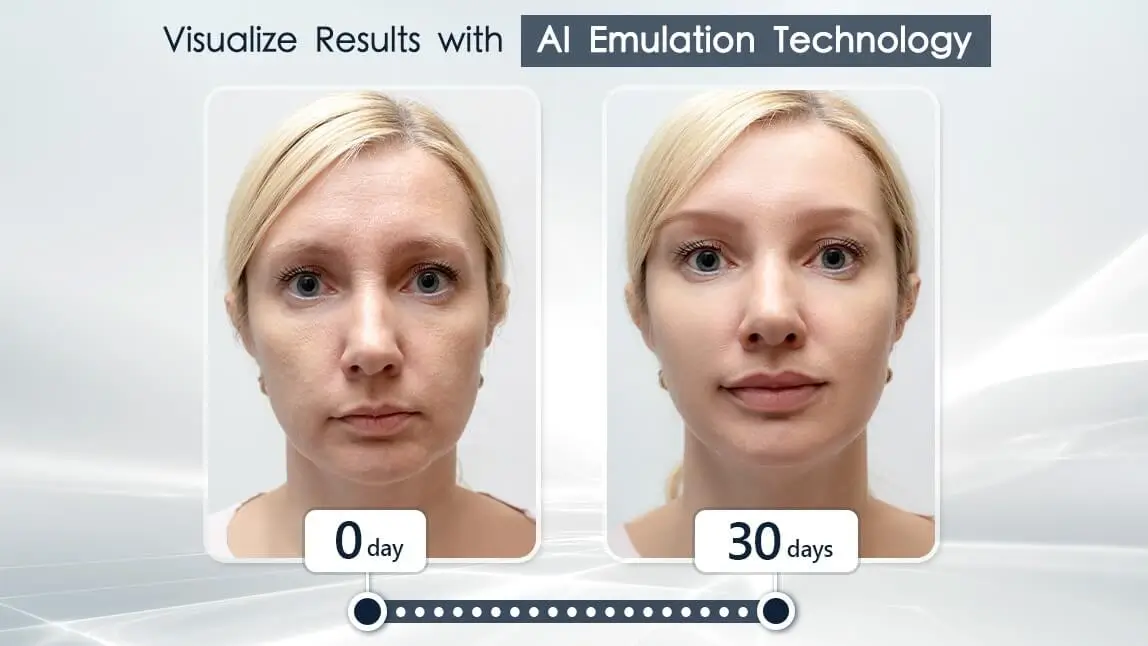
Designed specifically for skincare brands, dermatology practices, aesthetic clinics, and retail beauty retailers, this platform integrates effortlessly across digital and physical touchpoints, including e-commerce websites, mobile applications, virtual consultations, and point-of-sale kiosks. Its versatility supports a wide array of use cases such as personalized regimen recommendations, product performance simulation, treatment planning for professional procedures, and interactive educational tools that strengthen client engagement and build trust in brand claims.
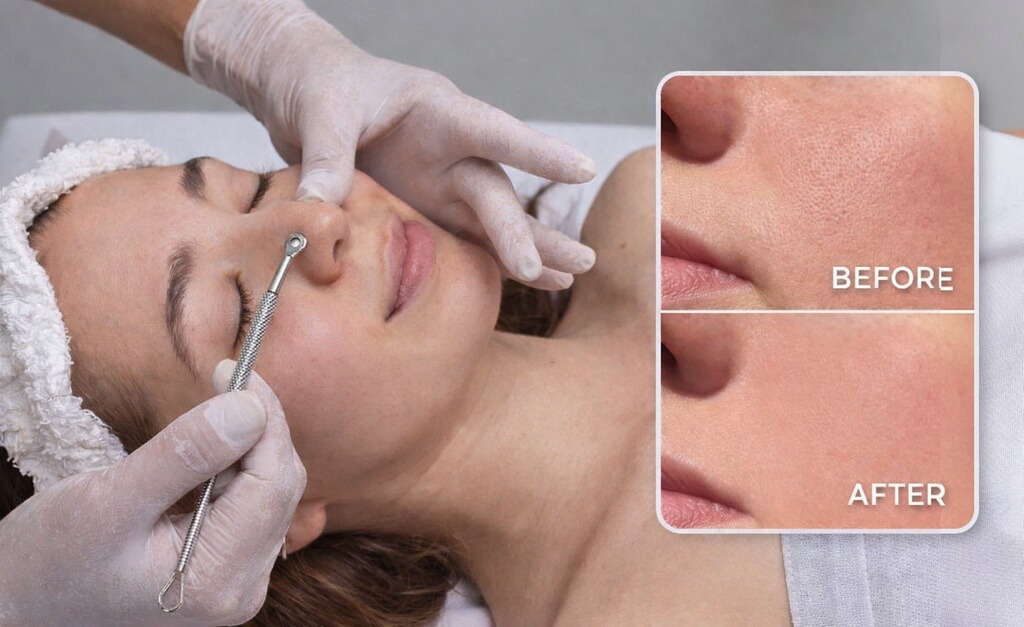
Through objective visualization and data-driven storytelling, our AI skin simulation empowers skincare professionals to set realistic expectations, customize care plans, and demonstrate measurable progress, ultimately elevating the customer experience while reinforcing evidence-based efficacy in an increasingly competitive market landscape.
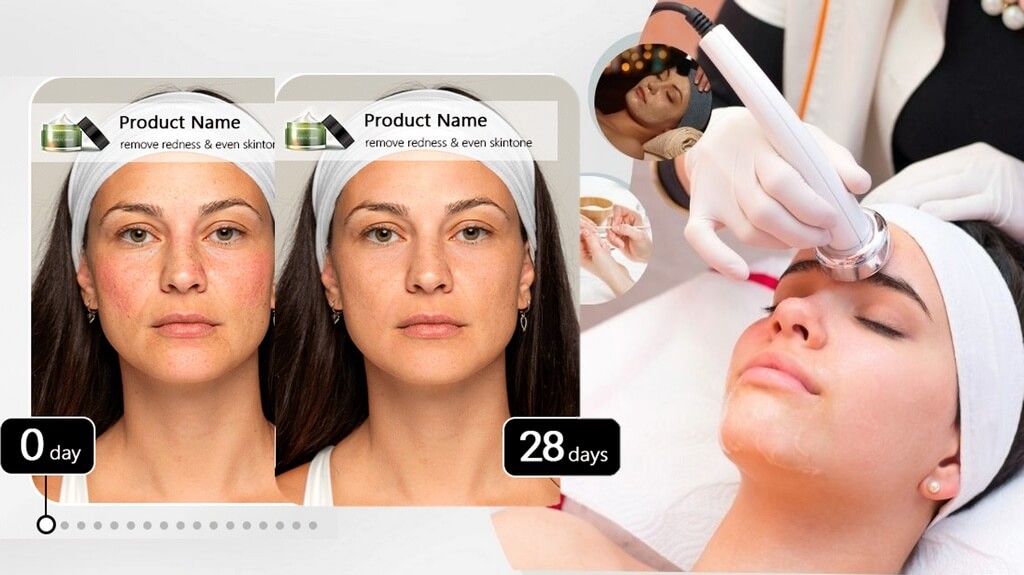
This guide walks you through:
Workflow for AI Skin Simulation API:
Endpoint: /s2s/v2.0/task/skin-simulation
Authentication Required: Authorization: Bearer YOUR_API_KEY
Workflow Steps:
Image Upload Preparation:
- The process begins with preparing a selfie image.
AI Skin Simulation Settings For each skin concern (e.g., wrinkle, pores, redness), adjust the simulation intensity using the value from 0.0 to 1.0:
- 0.0: Shows your original skin appearance—no changes.
- 1.0: Applies the most natural, healthy-looking enhancement AI can generate for that concern.
How it works:
- At low settings (e.g., 0.2–0.4), fine lines or minor imperfections are subtly softened.
- At higher settings (e.g., 0.7–1.0), more pronounced improvements occur, such as significant reduction in moderate or deep wrinkles, smoother texture, and improved tone, even while preserving natural skin details.
Adjust gradually to achieve your desired look!
Initiate AI Task and Obtain Task ID:
- Send the uploaded image along with the skin simulation configuration via an HTTP POST request to
/s2s/v2.0/task/skin-simulation. - Await a unique task ID in the response, which identifies this interaction.
- Send the uploaded image along with the skin simulation configuration via an HTTP POST request to
Poll Task Status (Continuous Check):
- Use the obtained
task_idto periodically poll the task status using an HTTP GET request (e.g.,GET /task/${task_id}). - Continuously monitor for:
Task_status = "success"(process completed).Task_status = "error"(resolve or retry if applicable).
- Update the workflow accordingly once the status transitions to success.
- Use the obtained
This structured workflow ensures efficient integration with user inputs, automated monitoring of tasks, and seamless retrieval of results.
- Authentication
- Include your API key in the request header using Bearer Token:
Authorization: Bearer YOUR_API_KEY
You can find your API Key at https://yce.makeupar.com/api-console/en/api-keys/.
- Upload an Image
You may upload a file directly to the server or provide a valid image URL in the AI task payload.
- Upload Endpoint
POST /s2s/v2.0/fileAlternatively, skip this step if you already have a public image URL.
- Adjust AI Skin Simulation Intensity AI Skin Simulation Settings
For each skin concern (e.g., wrinkle, pores, redness), adjust the simulation intensity on a scale from 0.0 to 1.0:
- 0.0 → Original appearance — no AI enhancement applied.
- 1.0 → Maximum natural, healthy-looking improvement for that concern, as realistically rendered by our AI model.
What to expect at different intensity levels:
| Intensity Range | Effect |
|---|---|
| 0.1 – 0.3 | Subtle refinement — minor smoothing of fine lines, slight pore softening, or gentle redness reduction. Ideal for a natural “fresh-faced” look. |
| 0.4 – 0.6 | Balanced enhancement — noticeable improvement in texture and clarity while retaining individual skin character. |
| 0.7 – 1.0 | Full correction — significantly reduces moderate to deep wrinkles, evens tone, minimizes pores and redness, and enhances overall radiance—without looking over-processed or artificial. |
Pro Tip: Start low (e.g., 0.2) and gradually increase until you reach the desired result in realism.
- Create a AI Skin Simulation AI Task and Poll for Results
After uploading an image and setting at least one skin concern's simulation intensity above 0.0, you can initiate a task. The API processes the request asynchronously. You must poll the task status until it reaches success or error.
- Create Task Endpoint
POST /s2s/v2.0/task/skin-simulation- Polling Endpoint
GET /s2s/v2.0/task/skin-simulation/{task_id}- AI Skin Simulation Specification
Camera and Imaging Guidance
Lighting Conditions Ensure the environment is well-lit and evenly illuminated. Avoid strong backlighting, localized overexposure, or large shadows on the face. Use natural daylight or soft indoor lighting whenever possible. Do not use colored lights, including pink, blue, or other tinted sources, as they may distort skin tone representation.
Face Position and Occlusion Capture a frontal view with the face directly facing the camera. The head rotation should be minimal; avoid excessive tilting or turning to either side. Ensure the entire face, including forehead, cheeks, and chin, is fully visible and unobstructed. Do not use hair, masks, hands, eyeglass frames, mobile phones, or any other objects that partially cover facial features.
Facial Expression and Pose Maintain a natural, relaxed expression with both eyes open. The mouth may remain closed or slightly open, do not strain or exaggerate the pose.
Face Size in Frame The face must occupy at least 60% of the image width to ensure sufficient detail for accurate analysis. Avoid capturing subjects that are too small, distant, or improperly framed.
- Supported Formats & Dimensions
| AI Feature | Supported Dimensions | Supported File Size | Supported Formats |
|---|---|---|---|
| AI Skin Simulation | short side >= 480, long side <= 2560 | < 10MB | jpg/jpeg/png |
- Error Codes
| Error Code | Description |
|---|---|
error_below_min_image_size | Input image resolution is below the minimum required size (e.g., < 256×256 pixels). Please upload a higher-resolution image. |
error_exceed_max_image_size | Input image resolution exceeds the maximum allowed size (e.g., > 2560×2560 pixels). Resize or downscale your image before uploading. |
error_invalid_params | Invalid request parameters were provided. |
error_src_face_too_small | The detected face occupies less than 60% of the image width—too small for accurate skin analysis. Use an image with a larger, clearer face centered in frame. |
error_src_face_out_of_bound | The detected face is partially or fully outside the image boundaries (e.g., face cropped too tightly). Please ensure the full face—including forehead, cheeks, and chin—is visible and properly framed. |
error_lighting_dark | Ambient lighting in the image is insufficient for reliable skin analysis (e.g., underexposed, shadows dominate the face). Upload an image taken in well-lit conditions with even illumination on the face. |
- Environment & Dependency
| Sample Code Language / Tool | Recommended Runtime Versions |
|---|---|
| cURL | - bash >= 3.2 - curl >= 7.58 (modern TLS/HTTP support) - jq >= 1.6 (robust JSON parsing) |
| Node.js (JavaScript) | Node >= 18 (for global fetch) |
| JavaScript | - Chrome / Edge >= 80 - Firefox >= 74 - Safari >= 13.1 |
| PHP | PHP >= 7.4 (for modern TLS/compat), ext-curl (recommended) or allow_url_fopen=On + ext-openssl, ext-json |
| Python | Python >= 3.10 (for f-strings), requests >= 2.20.0 |
| Java | Java 11+ (for HttpClient), Jackson Databind >= 2.12.0 |
version: v2.5The JavaScript Camera Kit provides a complete in-browser camera solution designed for high-accuracy face-based imaging tasks. It handles camera permissions, real-time face detection, automatic quality validation (lighting, pose, angle, distance), and guided capture UI flows.
This module is optimized for AI-driven image analysis, such as:
- AI Skin Analysis (SD/HD)
- AI Face Tone Analysis
- Hair-related Analysis
- Virtual Try-On (Ring, Wrist, Necklace, etc.)
- Permission Handling: Automatic management of webcam access.
- Quality Validation: Real-time monitoring of face position, lighting, and angle.
- Multi-Step Flows: Support for complex capture requirements (e.g., multi-angle hair capture).
- Flexible Output: Supports both
base64andblobimage formats.
Include the SDK via CDN in your HTML <head> or before the closing <body> tag. Once loaded, the SDK installs a global YMK object.
<script src="https://plugins-media.makeupar.com/v2.5-camera-kit/sdk.js"></script>The following example demonstrates how to initialize the kit, open the camera, and handle captured images.
<!DOCTYPE html>
<html lang="en">
  <head>
    <meta charset="UTF-8" />
    <meta name="viewport" content="width=device-width, initial-scale=1.0" />
    <title>Camera Kit Sample</title>
    <style>
      #YMK-module { margin: 20px 0; }
      img { width: 150px; margin: 5px; border: 1px solid #ccc; }
    </style>
  </head>
  <body>

    <!-- Initialization Script -->
    <script>
      // Define async init entry point
      window.YMKAsyncInit = function() {
        YMK.addEventListener('loaded', function() {
          console.log('Module fully loaded and ready');
        });

        YMK.addEventListener('faceDetectionCaptured', function(capturedResult) {
          const container = document.getElementById('captured-results');
          container.innerHTML = '';

          // Handle multiple images if returned (e.g., multi-angle capture)
          for (const item of capturedResult.images) {
            const img = document.createElement('img');
            // Handle both base64 strings and Blob objects
            img.src = typeof item.image === 'string'
              ? item.image
              : URL.createObjectURL(item.image);
            container.appendChild(img);
          }
        });
      };

      function openCameraKit() {
        YMK.init({
          faceDetectionMode: 'makeup',
          imageFormat: 'base64',
          language: 'enu'
        });
        YMK.openCameraKit();
      }
    </script>

    <!-- Load SDK -->
    <script src="https://plugins-media.makeupar.com/v2.5-camera-kit/sdk.js"></script>

    <!-- UI Elements -->
    <button onclick="openCameraKit()">Open Camera Kit</button>

    <!-- Mandatory Mount Point -->
    <div id="YMK-module"></div>

    <h3>Captured Results:</h3>
    <div id="captured-results"></div>
  </body>
</html>To ensure successful integration, the following requirements must be met:
| Requirement | Description |
|---|---|
| Browser Support | Must support getUserMedia API. |
| HTTPS | Required on most browsers for webcam access (except localhost). |
| Mount Point | A <div id="YMK-module"></div> is mandatory for rendering the UI. |
| Async Init | You must define window.YMKAsyncInit before the SDK loads. |
Call YMK.init() before calling YMK.openCameraKit().
YMK.init({
  faceDetectionMode: 'makeup', // Detection flow
  imageFormat: 'base64',       // Output format
  language: 'enu'              // UI Language
});Register listeners for camera events and capture results.
YMK.addEventListener('faceQualityChanged', function(q) {
  console.log('Quality updated:', q);
});This displays the UI, opens the webcam, and begins real-time monitoring.
YMK.openCameraKit();Images arrive via the faceDetectionCaptured event.
YMK.addEventListener('faceDetectionCaptured', function(result) {
  console.log(result.images);
});Clean up resources when done.
YMK.close();Configures module appearance, detection mode, language, and capture format.
| Argument | Type | Description | Default |
|---|---|---|---|
faceDetectionMode | string | Detection flow to use (see Detection Modes below). | "skincare" |
width | number | Pixel width of module container (300–1920). | 360 (≥500px) or screen width |
height | number | Pixel height of module container (300–1920). | 480 (≥500px) or min(screen.height, innerHeight) |
language | string | UI Language code (chs, cht, deu, enu, esp, fra, jpn, kor, ptb, ita, mon ). | "enu" |
imageFormat | string | Format returned via faceDetectionCaptured. | "base64" |
disableCameraResolutionCheck | boolean | Allow running even if webcam does not meet required resolution. | false |
hideFlipCameraButton | boolean | Controls visibility of the flip front/back camera button if the device supports it. | false |
countingDuration | number | Controls the countdown milliseconds when camera quality check meets criteria before auto-capture. | 800 |
qualityLevel | string | Controls the camera quality check setting, with options of relaxed, moderate, or strict. | relaxed |
qualityOverrides | object | Configure detailed parameters for camera quality verification. | See Camera Kit Quality Configuration |
videoQuality | string | Configure the output quality to 720p, 1080p, or 1920p. 720p corresponds to 1280 × 720, 1080p to 1920 × 1080, and 1920p to 2560 × 1920. This setting is supported only for skincare and hdskincare | 720p |
| Method | Description |
|---|---|
YMK.openCameraKit() | Opens the module and begins detection. |
YMK.close() | Closes module and camera. |
YMK.addEventListener(event, callback) | Registers event callbacks. Returns an EventListenerIdentifier. |
YMK.removeEventListener(id) | Removes listener by identifier. |
YMK.isLoaded() | Returns whether livestream or photo is drawn on canvas (boolean). |
YMK.pause() | Pauses the webcam stream. |
YMK.resume(restartWebcam) | Resumes webcam after pause. |
YMK.getInfo() | Returns current module info (e.g., { fps: 30 }). |
Camera Kit provides configurable quality parameters to control face detection and skin analysis behavior. These parameters allow developers to fine-tune detection strictness while maintaining consistency across web and native SDK implementations.
To simplify configuration, Camera Kit includes three predefined presets:
- RELAXED: Optimized for usability with minimal restrictions
- MODERATE: Balanced between usability and accuracy
- STRICT: Optimized for maximum detection accuracy
All custom configurations must meet or exceed the minimum requirements defined by the RELAXED preset.
Camera Kit Quality Configuration supports both skincare and hdskincare.
| Preset | Description |
|---|---|
| RELAXED | Less strict validation for smoother user experience |
| MODERATE | Balanced validation for most use cases |
| STRICT | Tight validation for high accuracy scenarios |
When using qualityOverrides, you may specify only the parameters you want to change. Unspecified parameters fall back to the active preset defaults.
{
  "face_ratio_lower_threshold": 0.55,
  "face_ratio_upper_threshold": 1,
  "face_left_boundary_lower_threshold": 0,
  "face_left_boundary_upper_threshold": 1,
  "face_right_boundary_lower_threshold": 0,
  "face_right_boundary_upper_threshold": 1,
  "face_top_boundary_lower_threshold": 0,
  "face_top_boundary_upper_threshold": 1,
  "face_bottom_boundary_lower_threshold": 0,
  "face_bottom_boundary_upper_threshold": 1,
  "pitch_lower_threshold": -20,
  "pitch_upper_threshold": 10,
  "yaw_lower_threshold": -15,
  "yaw_upper_threshold": 15,
  "roll_lower_threshold": -15,
  "roll_upper_threshold": 15,
  "lighting_lower_threshold": 0.55,
  "lighting_upper_threshold": 0.8,
  "lighting_uneven_threshold": 0.2
}Controls the acceptable proportion of the detected face.
- Measurement basis:
- Landscape mode: vertical ratio
- Portrait mode: horizontal ratio
| Parameter | Description | Allowed Range | Preset Defaults |
|---|---|---|---|
face_ratio_lower_threshold | Minimum face ratio | 0.55 to 1.0 | STRICT 0.75, MODERATE 0.65, RELAXED 0.55 |
face_ratio_upper_threshold | Maximum face ratio | 1.0 | 1.0 (all presets) |
Defines how close the face can be to the frame edges.
| Parameter | Description | Allowed Range | Default |
|---|---|---|---|
face_left_boundary_lower_threshold | Left boundary minimum | 0.0 to 1.0 | 0.0 |
face_left_boundary_upper_threshold | Left boundary maximum | 0.0 to 1.0 | 1.0 |
face_right_boundary_lower_threshold | Right boundary minimum | 0.0 to 1.0 | 0.0 |
face_right_boundary_upper_threshold | Right boundary maximum | 0.0 to 1.0 | 1.0 |
face_top_boundary_lower_threshold | Top boundary minimum | 0.0 to 1.0 | 0.0 |
face_top_boundary_upper_threshold | Top boundary maximum | 0.0 to 1.0 | 1.0 |
face_bottom_boundary_lower_threshold | Bottom boundary minimum | 0.0 to 1.0 | 0.0 |
face_bottom_boundary_upper_threshold | Bottom boundary maximum | 0.0 to 1.0 | 1.0 |
Controls allowable head orientation.
| Parameter | Description | Allowed Range | Preset Defaults |
|---|---|---|---|
pitch_lower_threshold | Minimum pitch angle | -20 to 10 | STRICT -10, MODERATE -15, RELAXED -20 |
pitch_upper_threshold | Maximum pitch angle | -20 to 10 | STRICT 0, MODERATE 5, RELAXED 10 |
yaw_lower_threshold | Minimum yaw angle | -15 to 15 | STRICT -5, MODERATE -10, RELAXED -15 |
yaw_upper_threshold | Maximum yaw angle | -15 to 15 | STRICT 5, MODERATE 10, RELAXED 15 |
roll_lower_threshold | Minimum roll angle | -15 to 15 | STRICT -5, MODERATE -10, RELAXED -15 |
roll_upper_threshold | Maximum roll angle | -15 to 15 | STRICT 5, MODERATE 10, RELAXED 15 |
Defines acceptable lighting quality and uniformity.
| Parameter | Description | Allowed Range | Preset Defaults |
|---|---|---|---|
lighting_lower_threshold | Minimum lighting level | 0.55 to 1.0 | STRICT 0.8, MODERATE 0.7, RELAXED 0.55 |
lighting_upper_threshold | Maximum lighting level | 0.8 to 1.0 | STRICT 0.9, MODERATE 0.85, RELAXED 0.8 |
lighting_uneven_threshold | Maximum luma difference between eyes | 0.0 to 0.2 | STRICT 0.1, MODERATE 0.15, RELAXED 0.2 |
- Custom values must not be less restrictive than RELAXED preset values.
- Only specified fields in
qualityOverridesare applied. - All unspecified parameters default to the selected preset.
Configure the faceDetectionMode in YMK.init() to suit your specific use case.
| Mode | Description |
|---|---|
makeup | Standard camera mode for virtual cosmetic try-on. |
skincare | Standard skin analysis mode, close-up face capture. Support AI Skin Analysis and AI Skin Simulation. |
hdskincare | High-definition capture for AI skin analysis using webcams with a minimum resolution of 2560 pixels on the longer side, subject to device support. |
shadefinder | Skin Tone Analysis front-face capture. |
facereshape | AI Face Reshape capture and AI Face Lift. |
hairlength | Full hair-length capture (from a distance). |
hairfrizziness | 3-phase capture: front, right-turn, left-turn. |
hairtype | Same 3-phase multi-angle capture flow. |
hairdensity | A 45‑degree downward head‑angle photograph. |
ring | Hand capture for ring virtual try‑on. |
wrist | Wrist capture for watch or bracelet virtual try‑on. |
necklace | Selfie capture for necklace try-on. |
earring | Selfie capture for earring virtual try-on. |
teethwhiten | Front‑facing selfie that detects whether teeth are visible; photo taken only when detected. |
nail | Hand capture for nails virtual try‑on. |
comprehensive | Photo to be used simultaneously for AI Makeup, AI Skin Analysis, and AI Facial Attributes & Ratio Analysis. |
| Event | Description |
|---|---|
opened | Module opened. |
loading | Loading progress (0–100). |
loaded | Camera stream loaded onto canvas. |
closed | Module closed. |
faceDetectionStarted | User enters the detection UI. |
| Event | Description |
|---|---|
cameraOpened | Webcam opened successfully. |
cameraClosed | Webcam closed. |
cameraFailed | Permission denied or no webcam found. Error codes include "error_resolution_unsupported", "error_permission_denied", "error_access_failed". |
unsupportedResolution | Fired when the device resolution does not meet the minimum requirements for the selected mode. |
Fires continuously during detection as quality metrics update.
Example Payload:
{
  "hasFace": true,
  "position": "good",
  "frontal": "good",
  "lighting": "ok"
}
Field Definitions:
hasFace: (boolean) Whether a face is detected.position: (string) Face distance/size quality ("good","notgood","toosmall","outofboundary").frontal: (string) Whether user is facing forward ("good","notgood").lighting: (string) Lighting strength ("good","ok","notgood").
Fired after all required face quality validation checks have passed and the Camera Kit has successfully completed the capture workflow. Depending on the mode, this may contain one or multiple images.
Example Payload:
{
  "mode": "makeup",
  "images": [
    {
      "phase": 0,
      "image": "data:image/jpeg;base64,...",
      "width": 500,
      "height": 500
    }
  ]
}
Image Object Fields:
phase: (integer) Zero-based index representing the capture step.image: (string|Blob) The captured image data.width: (integer) Pixel width of the captured image.height: (integer) Pixel height of the captured image.
To ensure successful capture:
- Distance: Ensure correct face distance (not too zoomed in/out).
- Angle: Ensure frontal face angle.
- Lighting: Provide sufficient lighting (avoid shadows or dark environments).
Modes like hairtype or hairfrizziness require multiple steps:
- Front face
- Turn right
- Turn left
Ensure your event handling logic accounts for multiple images in the faceDetectionCaptured result array.
- Flip Button: Use
hideFlipCameraButton: trueto enforce a specific camera orientation if your UX requires it. - Capture Delay: Adjust
countingDuration(default800) to give users more time to review the capture before auto-submission occurs.
const minQuality = {
  hasFace: true,
  area: "good",
  frontal: "good",
  lighting: "ok"
};